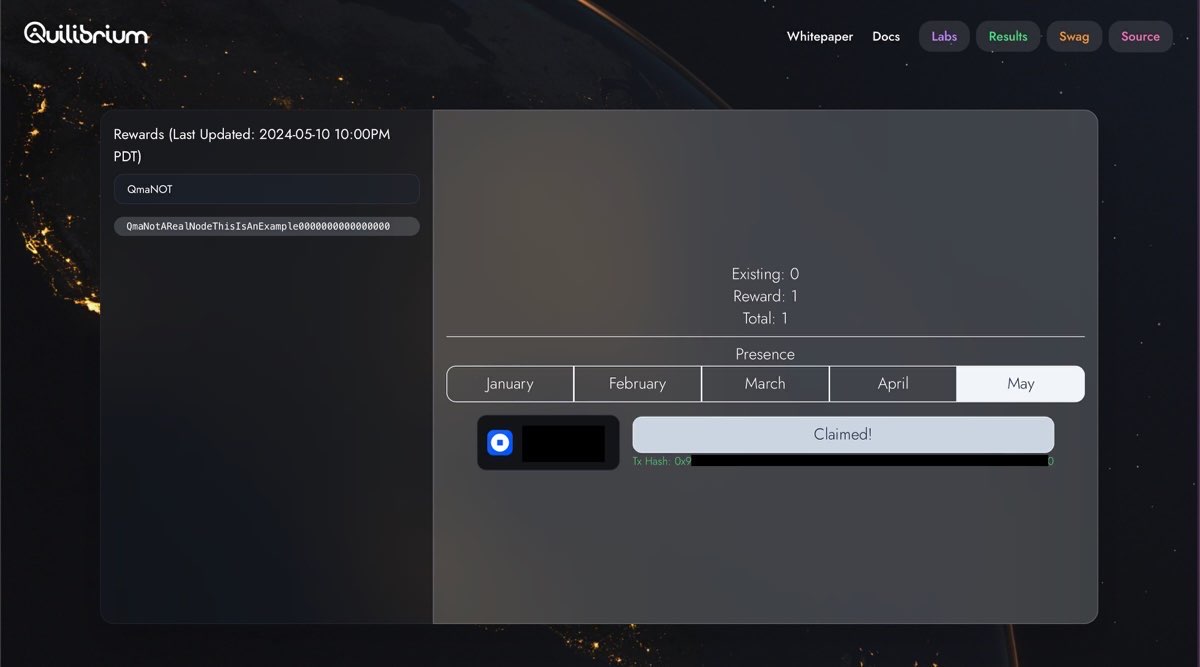
Claiming wQUIL on Ethereum L1
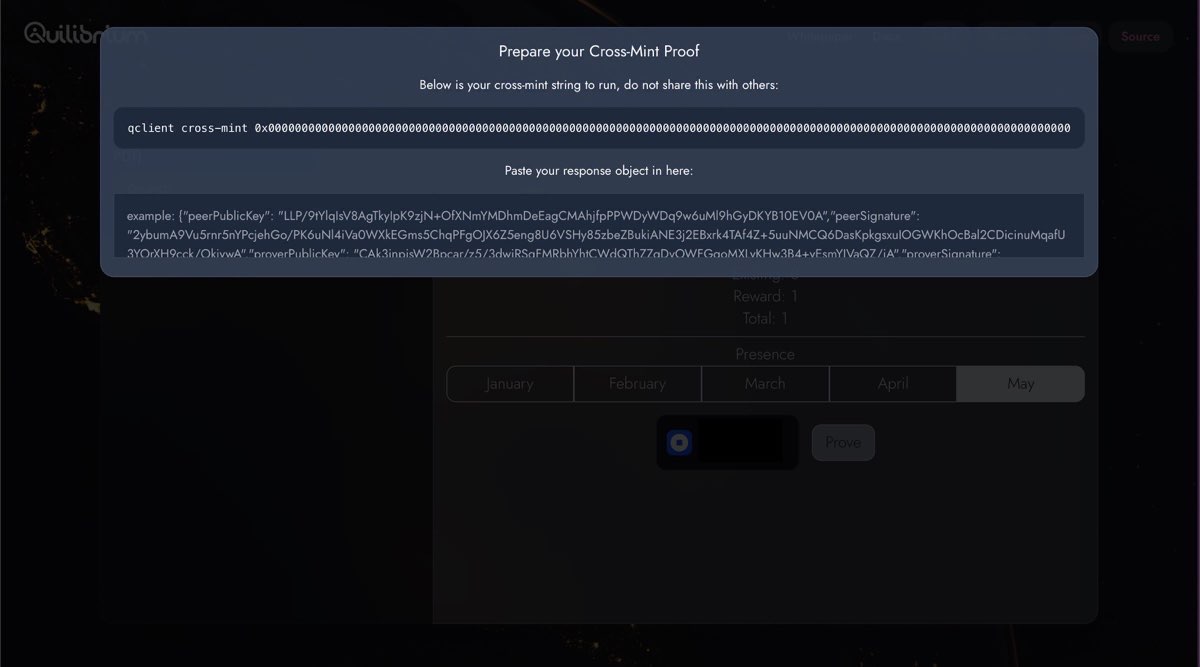
3. Invoke cross-mint command on node qclient
1. Using copied hex payload string, invoke cross-mint command
Using the copied hex payload string you copied from Step 1, invoke the cross-mint command in your node client.
Run
cd ~/ceremonyclient/client
qclient cross-mint 0x000000000000000000000000000000000000000000Or if you are running your node inside a Docker container, run
docker compose exec node qclient cross-mint --config /root/.config 0x000000000000000000000000000000000000000000The output must resemble something like
Example
$ qclient cross-mint 0x000000000000000000000000000000000000000000
{"peerPublicKey":"knksdfsdfnsdkfndsfjnfsdkfndksfndsfsdfnfsdfddsnfdsdfsfsdfdssdfsdffdssE+CUd+2A","peerSignature":"8sAjnsdjfnsdfkocArw+/absdasddsa/fubFHDwydBGenasdibdibediasdiasjdnsaidnasdinasdisandsadx3rSIROvW/9sZnwGyoA","proverPublicKey":"oomsjndsjndsajnasdkasdnksadnksadnksadnsddadsddas","proverSignature":"jeloirjfomdosfoddsofjdsfW+haasdjknsdfjnsdfijndsfjndsfkjsdnfkndsfdsfsdzq+ksdfjnkfjdsnkfjsndfkjsndfkjsdbfksbdfkjdsfbsdfbsdkfbdfskbdksbfkdsbffdsbkbf"}2. Paste the result on browser.
Paste the result string back in the dialog window on your browser, overwriting the placeholder value example: (....). After pasting the result string, the dialog window disappears if it is valid and you may proceed to Step 3.
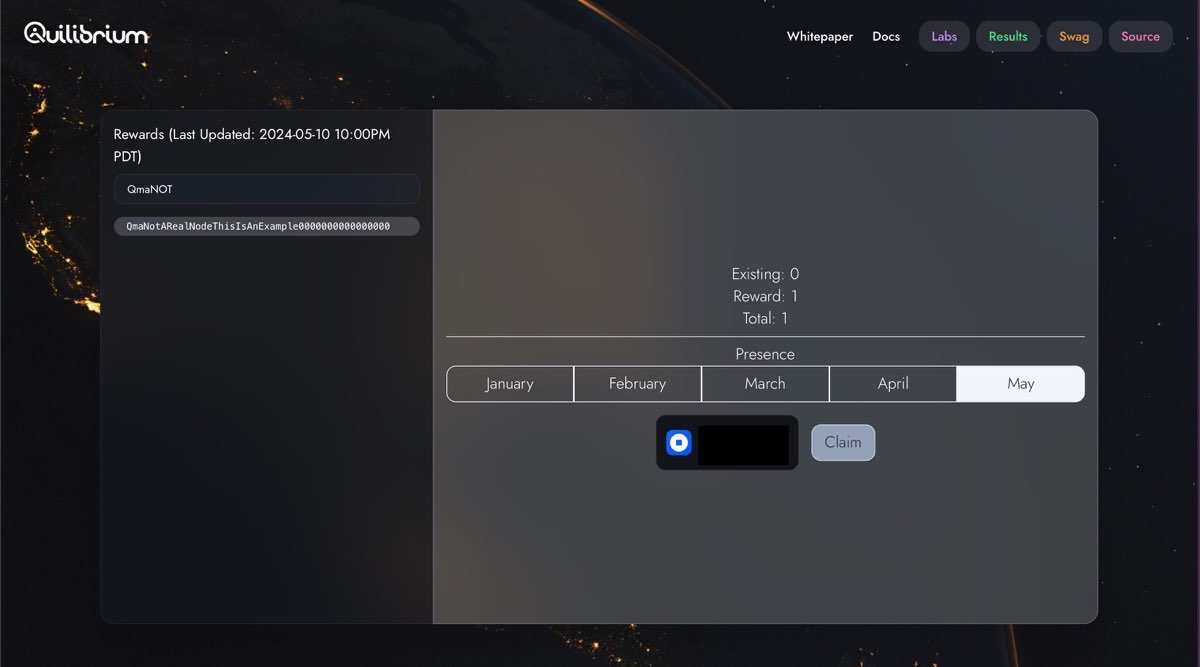
3. Click Claim button.
Click the Claim button next displayed to your connected wallet, as shown below (example used with coinbase wallet).
4. Confirm transaction on wallet extension to claim!
Confirm the transaction on your wallet extension to complete your $wQUIL claim!